Ubuntu MATE on Raspberry Pi: Install It from Ubuntu Server and Assess the Trade-offs
Install MATE on a Raspberry Pi using Ubuntu Server, then weigh its desktop tools and app catalog against long setup time and modest performance.
Ubuntu MATE still runs on Raspberry Pi, but setup takes extra work
Ubuntu MATE remains an option for Raspberry Pi users who want a traditional desktop interface, but current releases don’t provide up-to-date Pi images. The workaround is to install Ubuntu Server first, then add the ubuntu-mate-desktop package. That approach gets MATE running, though it means a lengthy installation and a few performance compromises.
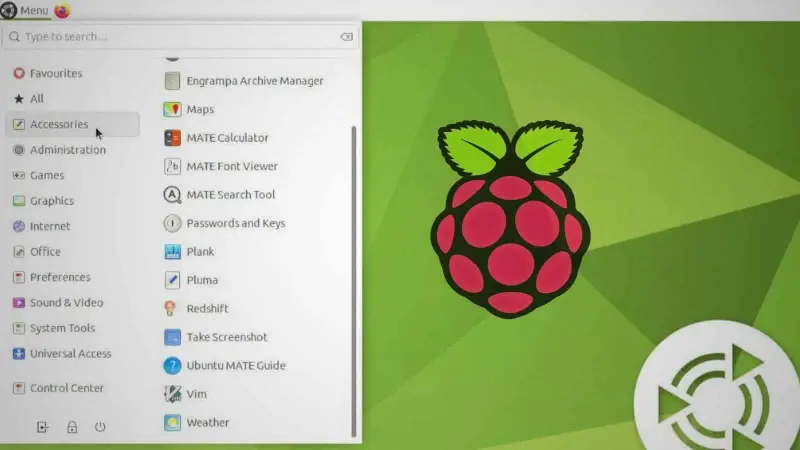
MATE follows the straightforward desktop model associated with GNOME 2: applications are grouped in a menu, system settings live in a control panel, and a bottom bar tracks open windows. For someone who finds Raspberry Pi OS’s default desktop limiting, Ubuntu MATE offers a different set of tools and access to Ubuntu’s software repositories. Whether that trade is worthwhile depends on the Pi model and the user’s tolerance for a slower desktop.
Hardware and storage requirements
The installation is intended for Raspberry Pi 3 and Raspberry Pi 4/400 systems. The Raspberry Pi 5 is not officially supported by Ubuntu MATE, though the same method may work. Raspberry Pi 1 and Pi Zero are not supported. Compatibility can change, so check the Ubuntu MATE compatibility list before choosing a board.
Plan for at least 2 GB of RAM; 4 GB is recommended. The installation was tested on a Raspberry Pi 4 with 4 GB. Storage must provide at least 8 GB, with 16 GB or more recommended. An SD card is the simplest choice, though a USB drive can also hold the system. Because the desktop adds more than a thousand packages to the minimal server installation, storage speed and available capacity both matter.
Install Ubuntu Server with Raspberry Pi Imager
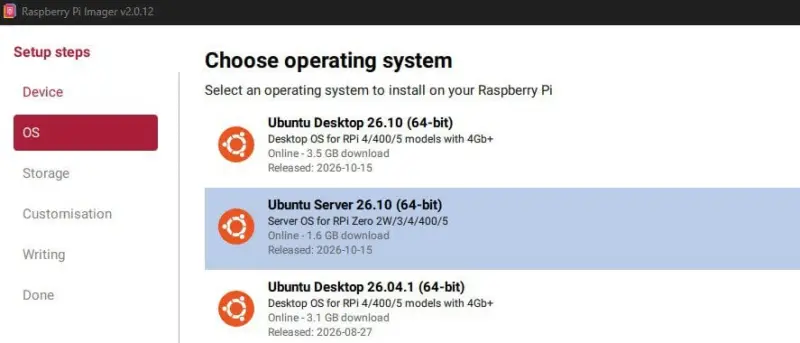
Ubuntu Server supplies the base operating system. Use Raspberry Pi Imager to write it to the SD card. In the Imager, select the Pi model under Device, then choose Other general-purpose OS, Ubuntu, and Ubuntu Server. Select the 64-bit option if the board supports it.
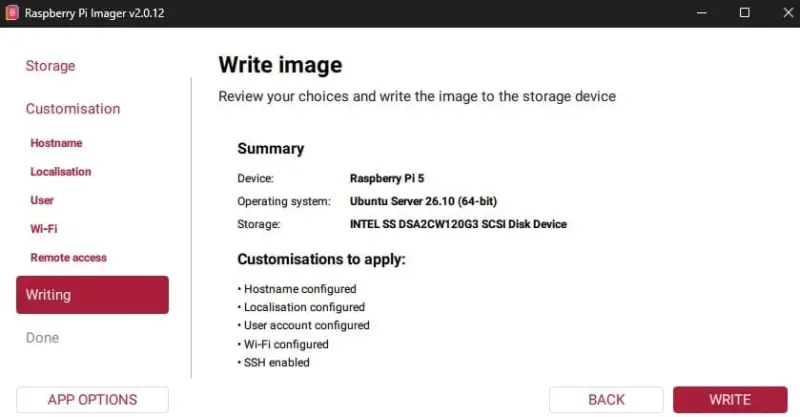
Insert the SD card and choose it under Storage. Before writing the image, use the customization options to set a username and password and, if needed, enable SSH. This is useful because the initial system has no graphical setup wizard: it starts at a text login prompt. Preconfiguring these settings avoids having to handle setup entirely through terminal commands.
Review the Imager’s summary and click WRITE. When the process finishes, insert the card into the Raspberry Pi and power it on. The first boot can take some time before the login prompt appears. If credentials weren’t set in Imager, the default login is ubuntu and the default password is also ubuntu.
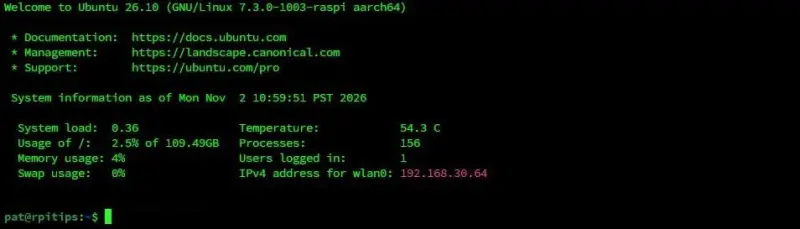
Connect the Pi to the internet before installing the desktop. Ubuntu Server’s text interface may feel unfamiliar to users accustomed to a graphical first-run process, but it provides the base needed for the package installation.
Add the MATE desktop
At the terminal, refresh the package lists and apply available updates:

sudo apt update
sudo apt upgrade
Then install the desktop environment from Ubuntu’s default software repository:
sudo apt install ubuntu-mate-desktopThis command pulls in more than a thousand packages on the minimal server base, so the download and installation can take a while. Once it finishes, restart the Pi:
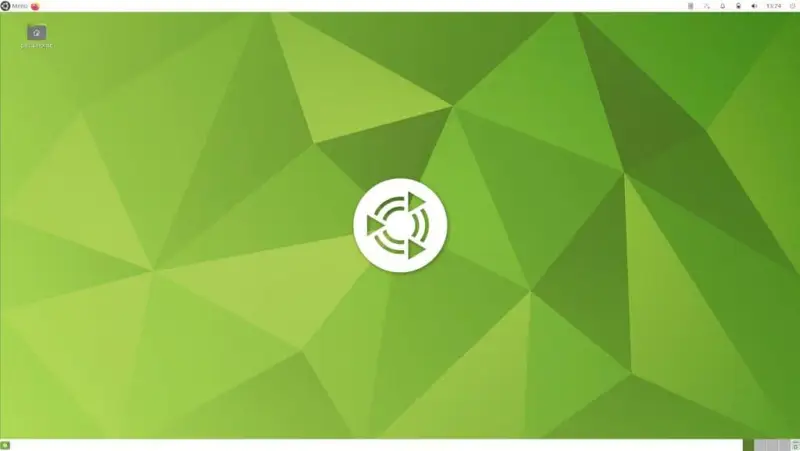
sudo rebootAfter rebooting, the system should present a graphical login screen. Sign in there to open the MATE desktop. The steps are the same in broad terms across the supported Pi models, but the Raspberry Pi 5 lacks official support, so successful installation on that board isn’t assured.
Finding your way around the desktop
The MATE layout will feel familiar to many Raspberry Pi OS users. Its main menu sits in the upper-left corner, with applications arranged by category. The menu’s search field is often the fastest way to find a specific program, especially when categories such as Accessories, System Tools and Administration aren’t immediately clear. Favourites and All views provide other ways to browse.
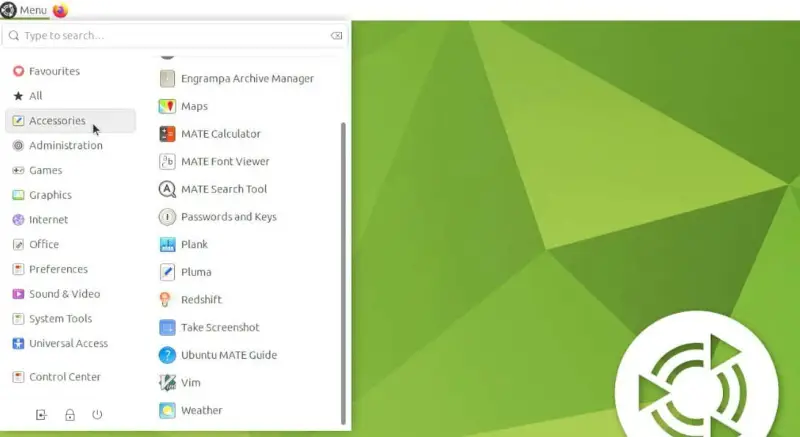
The upper-right area holds common system indicators and controls, including the clock, sound, Bluetooth and network widgets. A bottom panel shows open applications for switching between windows. It also provides access to virtual desktops and the trash. The arrangement is conventional, but it gives users who prefer a persistent taskbar a clear view of what’s running.
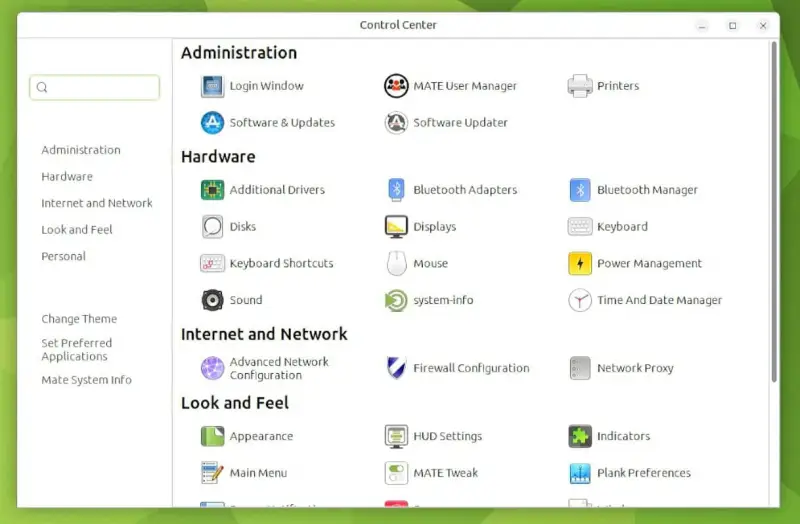
For configuration, open Control Center from the main menu. It brings together settings for appearance, networking and regional preferences. After connecting to Wi-Fi, the system may request further updates. Updates can also be started through the Software Updater in Control Center.
Included applications and software installation
The default application set covers common desktop tasks. Firefox is the browser, LibreOffice handles office documents and spreadsheets, and Celluloid provides video playback. There are also basic accessories such as a terminal, text editor and screenshot tool, alongside utilities for disk usage and backups. VLC isn’t included by default, but it can be installed if desired.
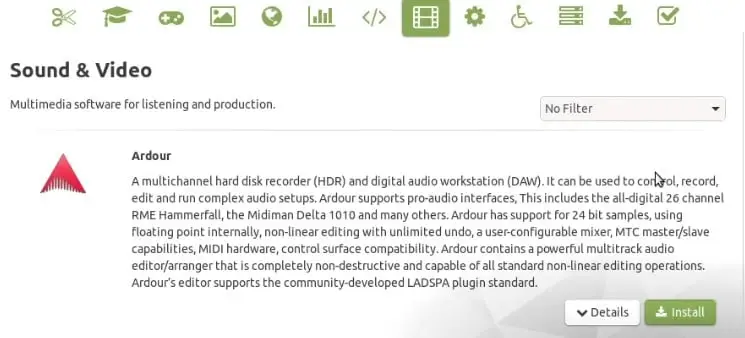
Ubuntu MATE also includes Software Boutique, a graphical catalog for finding and installing applications. Users can browse categories or search by name; an app entry includes a description and an install button. For example, someone looking for VLC can search for it directly or browse the sound and video category.
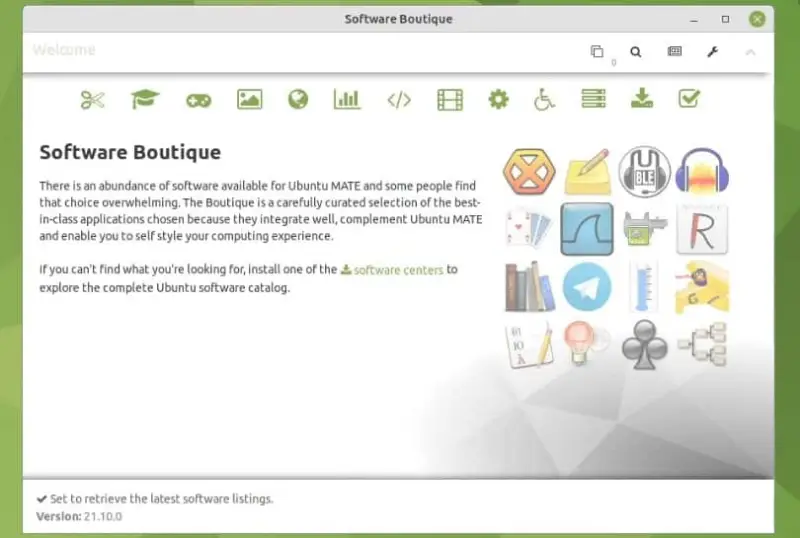
That catalog makes software discovery more approachable for users who don’t know package names or prefer not to install programs from the command line. The system also gives users access to Ubuntu repositories and Snap packages, extending the software choices available beyond the preinstalled set.
Performance and practical trade-offs
The appeal is a desktop that feels more modern than Raspberry Pi OS to some users, with a useful Control Center and a clear graphical path to installing applications. It’s a 64-bit system, and the test found that full-screen HD YouTube playback worked without a reported loss. Those observations suggest that the experience has improved with newer software versions, but they don’t make Ubuntu MATE a fast desktop on every Pi.
The main costs are installation time and general responsiveness. Ubuntu-based systems can feel slow on Raspberry Pi, and a browser such as Firefox adds to the load. A fast SD card or USB storage may help with the system’s day-to-day feel, but the desktop remains heavier than a minimal operating system. The initial test also encountered problems involving networking and a black screen; those issues were fixed quickly during testing, but they’re worth keeping in mind during setup.
The default application choices may not suit everyone, either. Firefox is included while VLC is not, and the desktop’s app selection doesn’t always seem tailored to the Pi’s hardware limits. Users can replace or add software, but that adds another step to an already long installation.
Choosing whether to use it
Ubuntu MATE is a reasonable alternative for Pi owners who want a traditional desktop, Ubuntu software access and a graphical application catalog. Beginners may find the Control Center and Software Boutique easier to approach than command-line package management. More experienced users may value access to Ubuntu repositories and Snap packages.
Still, it isn’t an automatic upgrade for every Raspberry Pi desktop. The setup requires installing a full desktop on top of Ubuntu Server, and performance can feel sluggish. Raspberry Pi 5 support remains unofficial, so anyone choosing that board should treat compatibility as uncertain. Trying the system on spare storage is a practical way to judge how its interface and speed fit a particular workload.
If MATE’s performance or application set doesn’t suit the project, other Raspberry Pi distributions include Twister OS, Manjaro and Linux Mint. For users set on an Ubuntu-based system, Pop!_OS is another option to consider. With Ubuntu MATE, the deciding factors are straightforward: compatible hardware, patience for the package install, and whether its desktop tools justify the extra load.
 AMD Venice Uses 2.5D Packaging to Feed More Bandwidth Into EPYC Zen 6
 CNC Controller Board Design: Interfaces, PCB Specs and Assembly Testing
 Stratasys and Nano Dimension End $42.5 Million Markforged Sale Agreement